Reset your password
Last updated 29 May 2026
Forgotten your password? You can set a new one yourself from the sign-in page — no need to contact your club. The whole process takes a couple of minutes, and you'll be sent a link by email to confirm it's really you.
Step 1 — Open the sign-in form
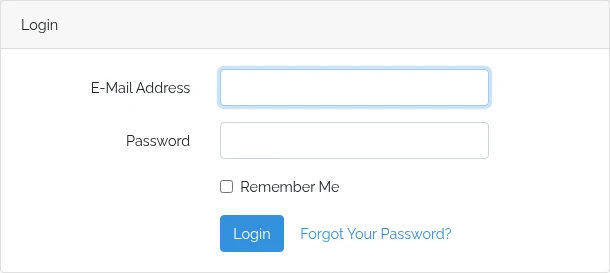
Go to https://gliding.net.nz and click Login in the top-right of the page. Below the password field, click Forgot Your Password?
Step 2 — Enter your email address
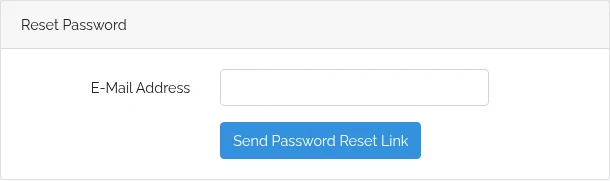
On the Reset Password form, type the email address for your account — the same one you use to sign in. Click Send Password Reset Link.
Step 3 — Check your inbox
You'll see a confirmation message, and an email with a reset link will arrive shortly.
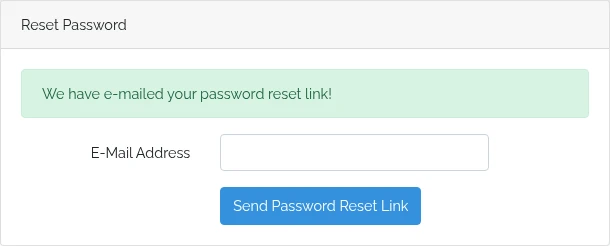
If the email doesn't arrive within a few minutes, check your spam folder. If it still isn't there, the address you entered may not match an account — try again with the email address your club holds for you.
Step 4 — Choose a new password
Click the link in the email to open the Reset Password form. Your email address is already filled in. Enter a new password and confirm it, then click Reset Password.
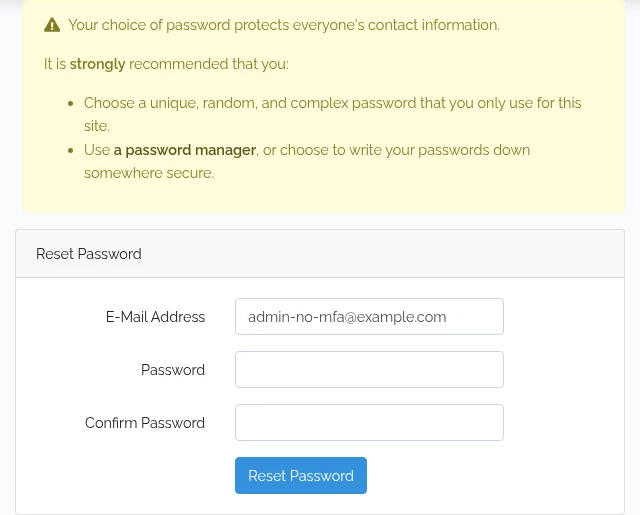
Your password protects everyone's contact information, so it has to be a strong one. It must:
- Be at least 15 characters long.
- Not be a password that's known to have appeared in a data breach.
- Not contain your email address.
A unique, random password kept in a password manager is the easiest way to meet all three.
Step 5 — You're in
Once your new password is accepted, you're signed in straight away and taken to your account. There's nothing else to do — use your new password the next time you sign in.
If the link doesn't work
Reset links are single-use and expire after a short time for security. If yours has expired or already been used, you'll see an error — just start again from Step 1 to request a fresh link.